Preview Stage
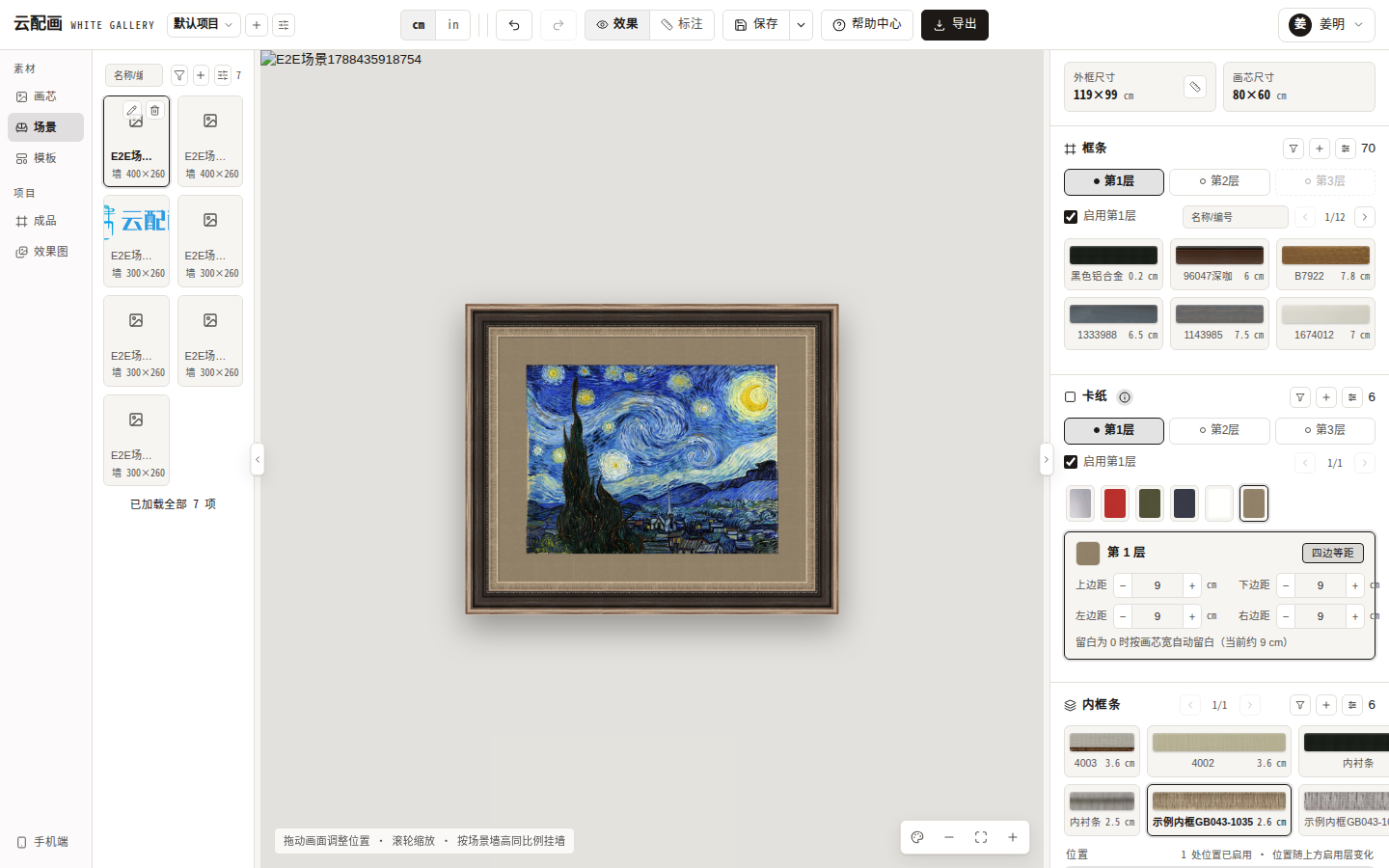
The center stage renders the current design in real time — it is the workbench canvas.
Basics
- Scroll: zoom (0.2–6×);
- Drag: pan;
- Touch devices support pinch to zoom;
- Bottom-right tools: background color, zoom out / fit / zoom in.
Wall mode
Select a scene from the library (living room wall, gallery wall…) and the stage enters wall mode:
- The artwork is mounted proportionally to the scene wall height (0.25–3×); drag to reposition;
- Hint text: “Drag to position · scroll to zoom · mounted proportionally to scene wall height”;
- Click the same scene card again to cancel and return to the plain backdrop.
Background color
The bottom-right color tool offers 8 presets + custom picker + “Default” reset. Picking a color replaces the scene with a solid wall; selecting a scene clears the custom color. Your choice persists.
Dimension mode
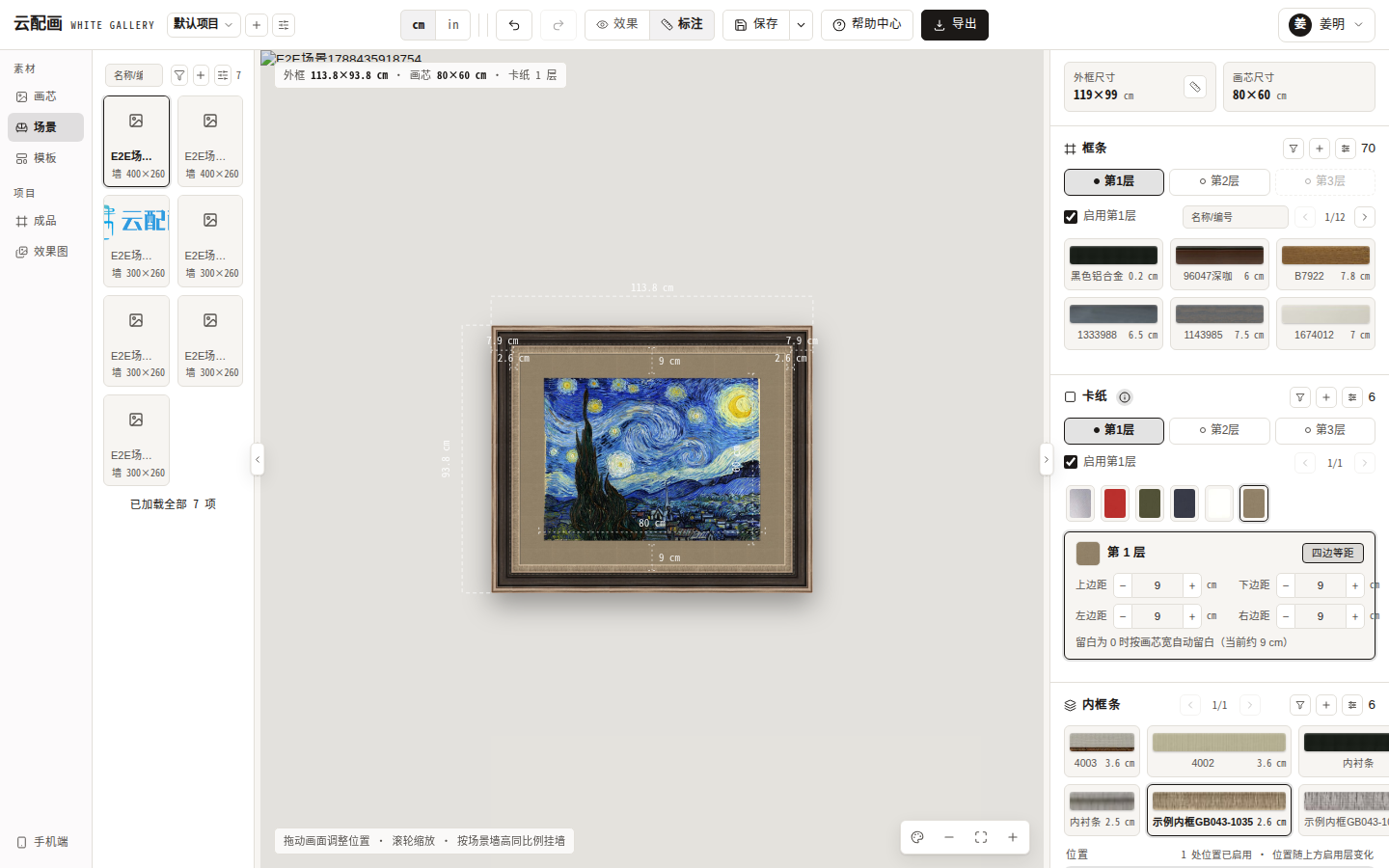
The top bar toggles between Effect and Dimension:
- Effect: what-you-see-is-what-you-get rendering;
- Dimension: overlays dimension lines and a structure summary (outer frame / picture / N mats) for size checking.
HD export
The top-bar “Export” button exports a PNG of the current mode (filename prefix “配框-”):
- No scene: white-background original, longest edge 2000px;
- Scene: composed wall view, 1600px wide.
Export requires same-origin asset images; with cross-origin assets that lack CORS headers you may see “Export failed: image could not be loaded” — use platform-uploaded assets instead.