Save & Export
Save (split button)
The top-bar “Save” is a split button:
- Main button: save artwork (disabled without a frame: “Select a frame first”);
- Caret menu: save artwork / save template / save scene render (third option appears once a scene is selected).
Save artwork
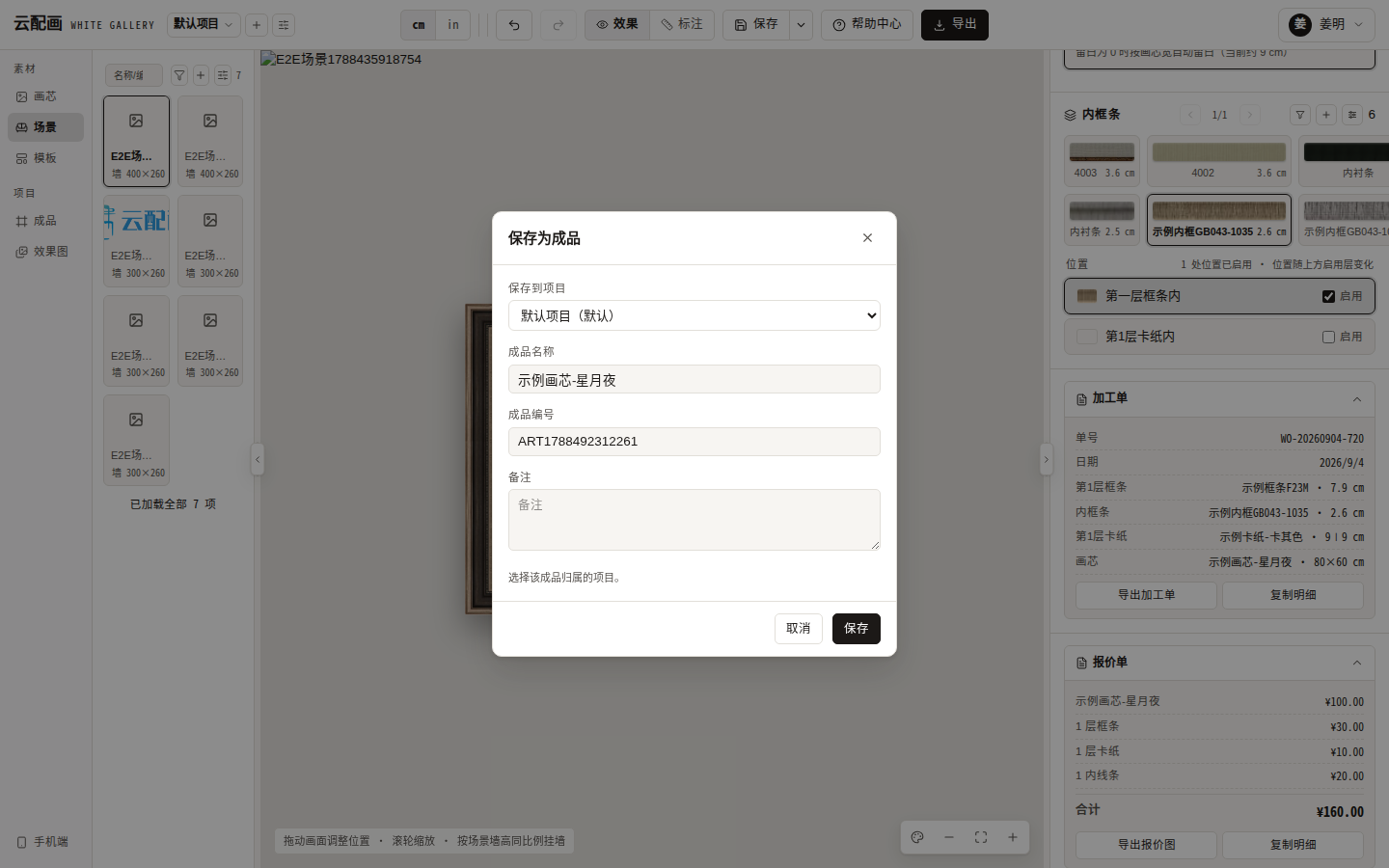
Fill in:
- Artwork name;
- Artwork number (auto
ART+timestamp, editable); - Description, project.
On confirm the system renders the composed image first, then persists the full design. Notes:
- Saving always creates a new artwork; it never overwrites;
- Saved artworks appear in the library “Artwork” tab; clicking one re-opens it via
?artId=; - A 30-second watchdog shows “Save timed out, please check your network and retry” if rendering stalls.
Save template
Stores the current framing parameters (frames / mats / fillets / sizes) as a template; restore later from the library “Template” tab. Templates exclude the picture choice.
Save scene render
Requires a scene and a rendered image. Stores the composed wall view into the selected project; find it in the library “Render” tab.
Exporting images
The top-bar “Export” outputs a high-resolution PNG of the current mode:
| Mode | Output |
|---|---|
| Effect (no scene) | White-background original, longest edge 2000px |
| Effect (scene) | Composed wall view, 1600px wide |
| Dimension | Dimension lines + structure summary overlay |
The artwork and render management dialogs also support “export all / export selected” as a zip of original images.